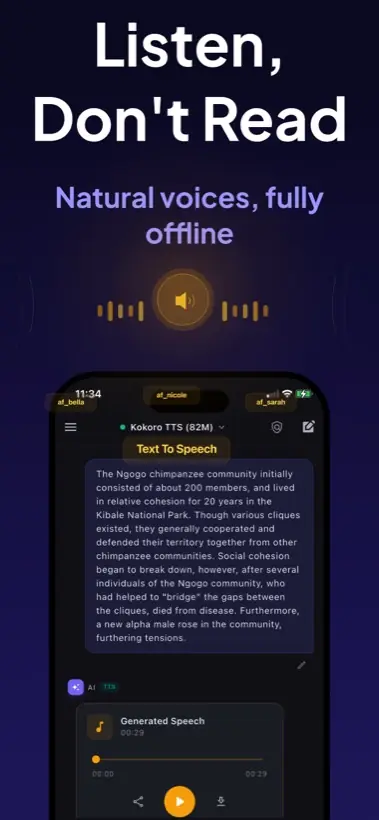
Quick answer: Local AI Chat supports text-to-speech, so you can listen to AI responses on iPhone and iPad. For privacy, treat "voice chat" claims carefully: ask whether chat, speech recognition, and voice output are local or whether any part uses cloud services.
Voice chat has three separate parts
AI modelThe LLM that answers your prompt. This can run locally in Local AI Chat for supported models.
Speech inputThe microphone-to-text layer. Some apps use local dictation, while others use cloud speech recognition.
Speech outputThe text-to-speech layer that reads answers aloud. Local AI Chat includes TTS for listening to responses.
Why this matters for privacy
An app can honestly run the language model locally but still send voice input or premium voices to a cloud provider. That may be fine for casual use, but it is not the same as a fully local voice pipeline. If you care about privacy, check each layer instead of trusting the phrase "AI voice chat."
Good offline voice use cases
- Listen to an explanation while walking or commuting.
- Turn study notes into spoken summaries.
- Have a local AI read back rewritten text before you send it.
- Use AI responses hands-free when typing is inconvenient.
How to test an offline AI voice workflow
- Download the model and any voice assets you need. Do this on Wi-Fi before travel.
- Turn on airplane mode. This is the simplest real-world test.
- Ask a short question. Confirm that the local AI model answers.
- Tap text-to-speech. Confirm whether spoken output still works offline.
Best fit: Local AI Chat is a strong choice when you want private local chat plus spoken responses, without turning every prompt into a cloud request.